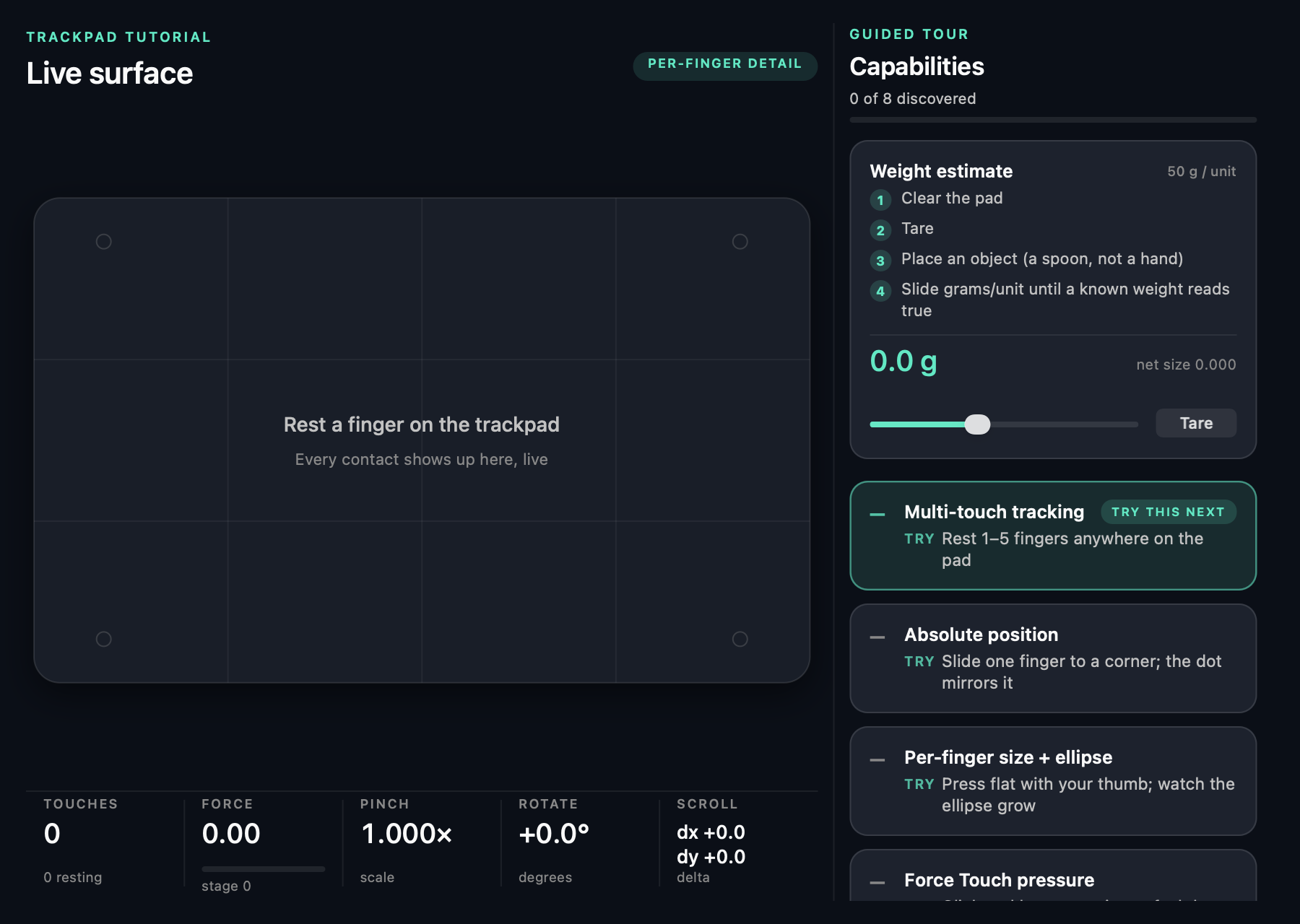
—Multi-touch tracking
Rest 1–5 fingers anywhere on the pad
macOS 13+ · Swift · AppKit · MIT
macOS knows where every finger is, how hard it presses, how wide it lands — it just never shows you. Trackpad Studio reads that stream and turns the pad into a canvas: ink lands exactly where your finger touches.
The web only gets a mouse
This is the whole of what a browser receives from your trackpad: one point, no pressure, relative motion. Put a second finger down — the counter stays at 1.
The real data goes only to native code: absolute per-finger coordinates, contact ellipses, Force Touch pressure. That gap is why this app exists.
mouse events · 1 contact max
Guided tour · 8 capabilities
One card per capability. Each stays dashed until you actually perform the gesture — nothing unlocks by reading.
Rest 1–5 fingers anywhere on the pad
Slide one finger to a corner; the dot mirrors it
Press flat with your thumb; watch the ellipse grow
Click and keep pressing; the bar fills past stage 1
Two fingers, in and out; the scale multiplies
Two fingers, turn; degrees accumulate
Two fingers, any direction; dx and dy stream in
Park a thumb and leave it; it is counted, not obeyed
Contact size grows with pressure, so the pad can be talked into being a very rough scale: tare, set something down, calibrate against a known weight. A party trick with a plausible number — not a kitchen scale.
Per-finger data needs Input Monitoring permission. Without it the app drops the size-based features and everything else keeps working.
On the board
A finger lands: the cursor freezes and hides. It's back the instant the last finger lifts, focus moves, or you press Esc.
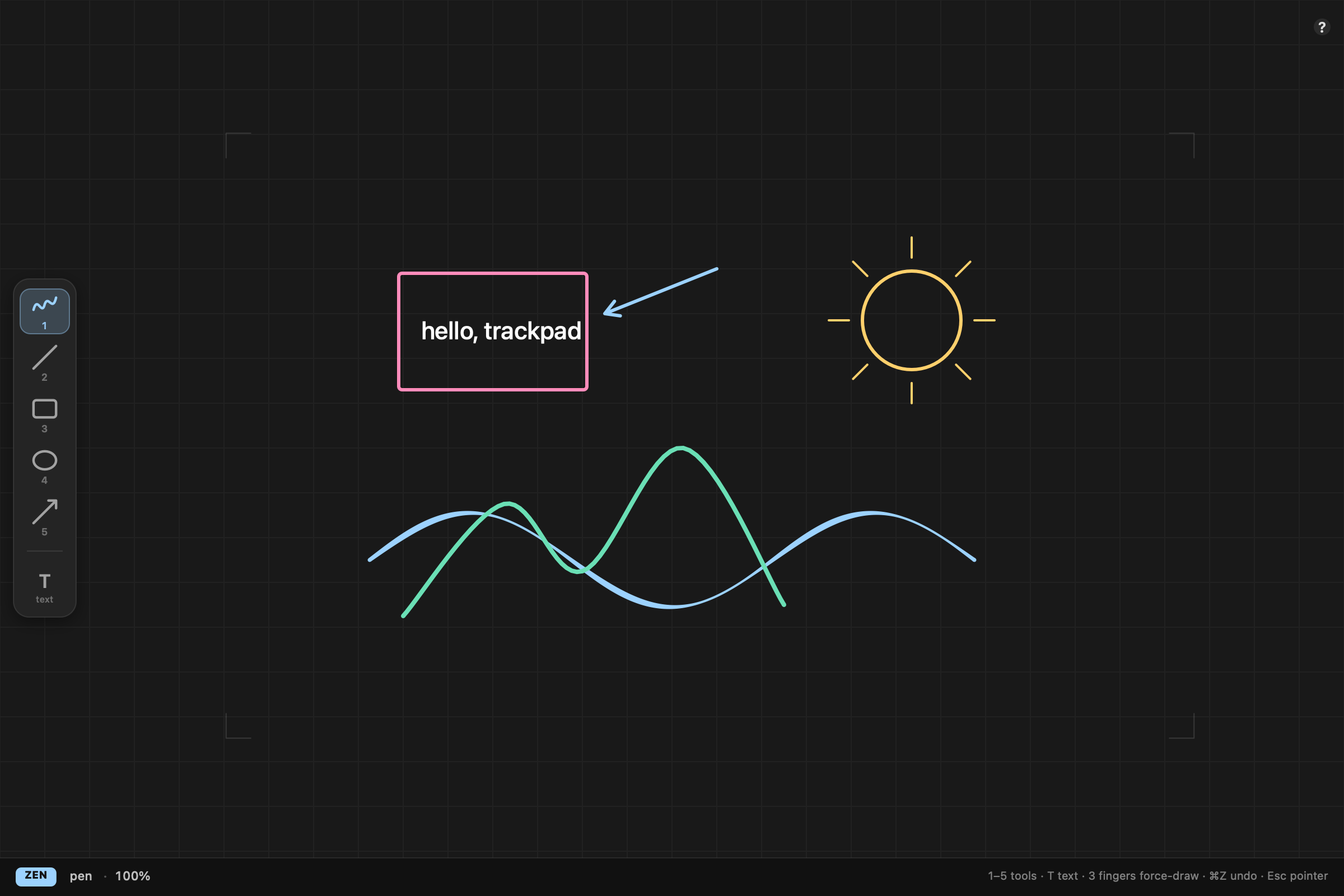
A light touch is just a cursor; press, and pressure thickens the stroke under your finger.
Two fingers zoom and pan at once, computed from raw touches — no gesture exclusivity, no picking one or the other.
Three fingers down and the current tool draws at full force. The leftmost finger is the pen.
Parked thumbs and palms show as ghost rings and are filtered out of every gesture — leaning on the pad breaks nothing.
One keystroke sends the board to codex + imagegen, which swap in a polished transparent repaint. One ⌘Z brings every stroke back.
Keys 1–5 pick pen, line, rectangle, ellipse and arrow. T drops a text label that holds the same on-screen size however far you zoom in.
Live surface
Install
Download the app, drag it to Applications, then run one command in Terminal. The app is open source but not notarized with a paid Apple Developer ID, so macOS quarantines the download until you clear the flag:
Prefer to compile it yourself? Xcode command line tools with Swift 5.9 or newer:
Optional: the per-finger size, contact ellipse and weight card read from a private macOS framework, which needs Input Monitoring under System Settings → Privacy & Security. Skip it and the app still runs — those three cards simply report themselves unavailable.
Questions
A browser sees your trackpad as a mouse: one relative cursor, no matter how many fingers are down. Pinch shows up as a ctrl-wheel event, pressure only appears in Safari during a click, and per-finger position never appears at all. Absolute coordinates come from AppKit's NSTouch and contact size comes from a private macOS framework. There is no web equivalent to port.
Yes. Anything macOS reports as a multi-touch device works the same way — built-in or connected over Bluetooth.
It measures something real — capacitive contact size, which grows with pressure — but it is not a scale. With a tare and a calibration against a known weight you can get a believable number out of a light object. Enjoy it as a party trick and do not weigh your coffee beans with it.
Anything capacitive the pad registers will do — a knuckle, a touchscreen stylus tip. A wooden pencil is invisible to it.
No. The pointer is re-enabled when the last finger lifts, when the window stops being key, and when the view goes away. Never leaving a frozen cursor behind is a hard rule in the code.
Nothing. MIT licensed, source on GitHub, no account, no telemetry. If it made your afternoon better there is a coffee button below.